
 Posted by
What is OpenClaw?
OpenClaw is an open-source AI agent framework that allows you to run a persistent, self-hosted AI assistant locally on your own hardware. Unlike traditional chatbots that only respond within a browser window, OpenClaw can interact with your operating system, manage files, execute commands, automate workflows, and integrate with external services like Telegram, WhatsApp, GitHub, and Google Workspace.
What makes OpenClaw particularly interesting is that it combines modern large language models with long-running agent behavior and local infrastructure control. In practical terms, this means you can build an AI assistant that operates more like a lightweight autonomous operator than a simple chatbot.
For many people, the appeal of OpenClaw is control:
- Your agent runs on hardware you own
- You decide what services it can access
- You control the security boundaries
- You can extend it with skills, plugins, and automation workflows
But that same level of capability also introduces risk.
An AI agent with filesystem access, shell access, internet connectivity, and persistent runtime behavior should be treated carefully. Unfortunately, many setup guides focus heavily on functionality while spending very little time discussing operational security or least-privilege deployment practices.
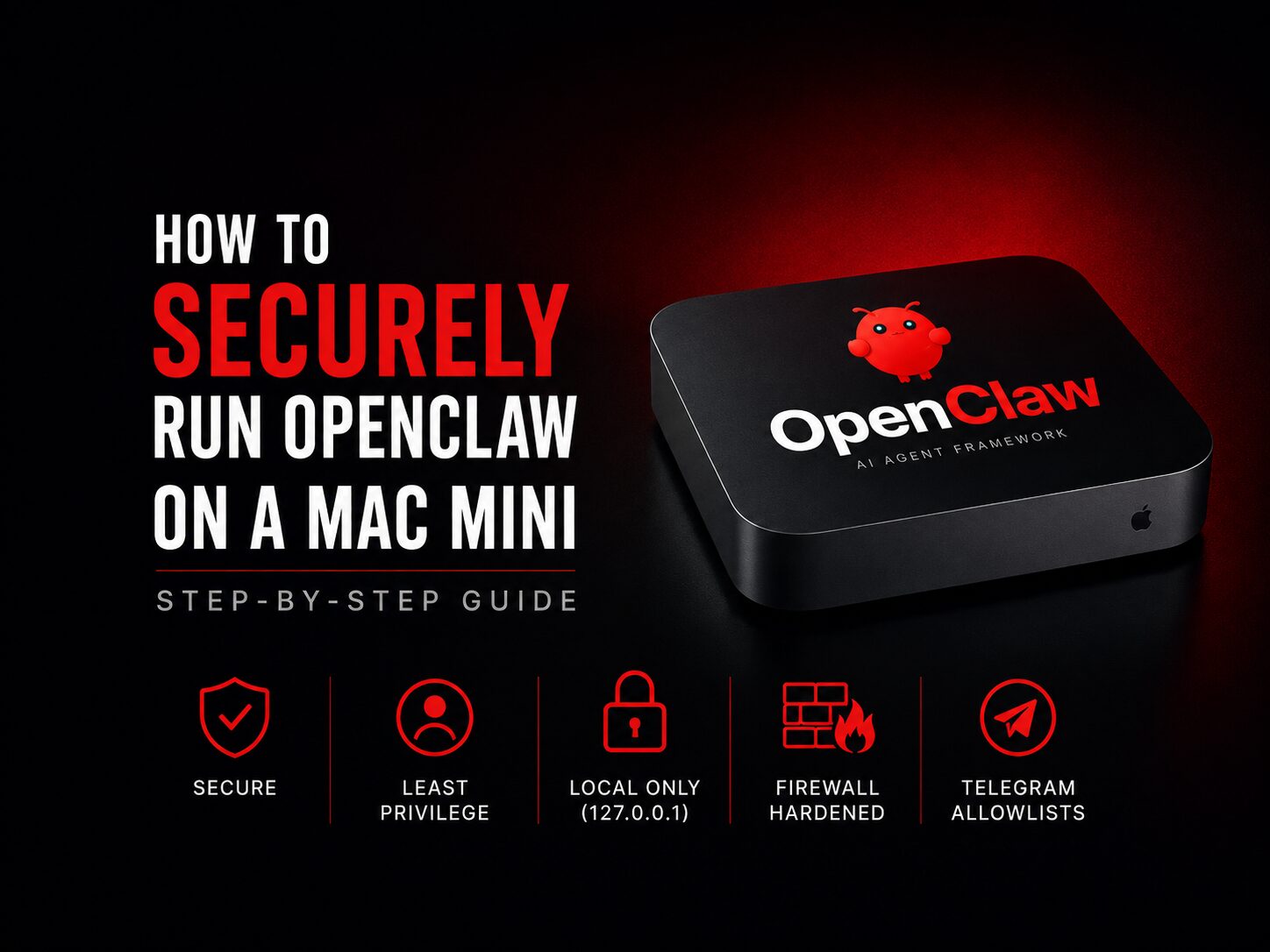
This guide focuses specifically on deploying OpenClaw securely on a Mac Mini using:
- a dedicated non-admin user account
- Local-only gateway binding (
127.0.0.1) - hardened macOS security settings
- Telegram allowlists
- persistent background services
- post-installation security auditing
The goal is not enterprise-grade hardening, but rather a practical and security-conscious deployment suitable for hobbyists, developers, technologists, and home lab users who want to experiment with AI agents responsibly.

Figure 1: High-level security architecture for a hardened OpenClaw deployment on macOS using least privilege principles and local-only gateway exposure.
Recommended Hardware
For a smooth experience, I recommend (at minimum):
- Mac Mini M4
- 16GB RAM minimum
- 256GB SSD minimum
Apple Silicon performs exceptionally well for local AI agent workloads while maintaining very low power consumption.
You should also plan for:
- 1–3 hours of setup time
- An LLM provider account (OpenAI, Anthropic, Gemini, etc.)
- A Telegram account (for this guide)
Why Run OpenClaw Under a Dedicated User Account?
OpenClaw is capable of:
- Reading files
- Executing shell commands
- Connecting to external services
- Automating workflows
- Running continuously in the background
For that reason, I strongly recommend running it under a dedicated standard (non-admin) macOS account rather than your primary administrator account.
This limits the blast radius if:
- The agent misbehaves
- A plugin is compromised
- Credentials leak
- Remote access is abused
- An automation accidentally performs destructive actions
Treat AI agents the same way you would treat any long-running automation service or daemon: least privilege should be the default.
Step 1: Update macOS
Before beginning, make sure your Mac Mini is fully updated.
Go to:
System Settings → General → Software Update
Install all available updates before continuing.
Step 2: Create a Dedicated Standard User
Create a dedicated standard (non-admin) user account that will run the OpenClaw agent.
Go to:
System Settings → Users & Groups → Add User
Create:
- Account Type: Standard
- Suggested Username:
openclaw

This user account will:
- Run the OpenClaw gateway
- Own the workspace files
- Limit administrative access
⚠️ Important
All software installation steps below should initially be performed from your administrator account. We will switch to the dedicated standard user later when onboarding the OpenClaw agent itself.
Step 3: Configure macOS Power Settings
Since OpenClaw is designed to run continuously, we want the Mac Mini to remain awake and recover automatically after power outages.
Go to:
System Settings → Energy
Enable:
- Prevent automatic sleeping when the display is off
- Start up automatically after a power failure

This ensures:
- The system stays online
- The agent remains accessible
- Services recover automatically after outages
Step 4: Enable FileVault Disk Encryption
Go to:
System Settings → Privacy & Security → FileVault
Enable:
- FileVault

This encrypts the disk and protects local data if the machine is lost or stolen.
Step 5: Configure the macOS Firewall
Go to:
System Settings → Network → Firewall
Enable:
- Firewall

Then click:
Options...
Enable:
- Stealth Mode
Depending on your environment, you may also choose to:
- Block all incoming connections
⚠️ Note
Blocking all incoming connections can interfere with some remote management or VNC workflows. If you enable it temporarily during setup, remember to re-test connectivity afterward.
Step 6: Install Required Software
We now need to install the following:
- Homebrew
- Node.js
- npm (Node Package Manager) – this will install as part of the Node.js installation
All of these steps should still be performed from your administrator account.
Install Homebrew
Open the Terminal app and run:
/bin/bash -c "$(curl -fsSL https://raw.githubusercontent.com/Homebrew/install/HEAD/install.sh)"The installation may take several minutes.
At the end of the installation, Homebrew will provide commands to add itself to your shell path.
It should look something like this:
echo >> /Users/YOURUSERNAME/.zprofile
echo 'eval "$(/opt/homebrew/bin/brew shellenv)"' >> /Users/YOURUSERNAME/.zprofile
eval "$(/opt/homebrew/bin/brew shellenv)"
Run the commands provided by the installer for your environment.
Verify the installation:
brew --versionIf successful, Homebrew will return its installed version number.
Install Node.js
Install Node.js using Homebrew:
brew install node
Verify the installation:
node --version
OpenClaw currently requires Node.js v22 or later.
Install OpenClaw
Still under your administrator account, install OpenClaw globally:
npm install -g openclaw@latestVerify the installation:
openclaw --versionAt the time of writing, version 2026.01.29 was installed.
⚠️ Important
We are only installing OpenClaw from the administrator account.
The actual onboarding and runtime configuration will happen under the dedicated standard user account.
Optional: Using Screen Sharing to Remote Into the Standard User Account (OpenClaw)
Instead of constantly logging in and out between the admin account and the openclaw account, we can remotely access the local standard user session via Mac’s built in Screen Sharing app. MacOS does not directly support local VNC loopback access out of the box, but we can create a workaround using SSH tunneling.
This section is completely optional. If you prefer to just switch back and forth between your admin and standard user account, jump down to Step 7 to onboard your OpenClaw agent.
Enable Screen Sharing and Remote Login
Go to:
System Settings → General
Enable:
- Screen Sharing
- Remote Login
For both settings (Screen Sharing and Remote Login):
- Add your standard user account (
openclaw) to the allowed users list.
Example of Screen Sharing Settings:

You can access these settings using the small (i) information button beside each option.

⚠️ Important
If theopenclawuser is not explicitly added to both allowlists, authentication will fail later.
Create the SSH Tunnel
From your administrator account, open Terminal and run:
ssh -NL 5901:localhost:5900 openclaw@localhostReplace:
openclawwith your standard username
If prompted:
- Accept the SSH connection
- Enter the password for the standard user account
If successful, the terminal will appear to “hang”. This is expected behavior. Leave the terminal window open, as this is what is establishing the SSH tunnel. You need this active to connect via screen sharing.
⚠️ Important
If you don’t know your user’s short username, log into your user account and type “whoami” into a terminal window. It will respond with your user’s short username.
Connect Using Screen Sharing
Launch the macOS Screen Sharing app.
Connect to:
vnc://localhost:5901
When prompted for credentials, enter:
- Username:
openclaw - Password: your standard user password

Important: After entering your credentials, on the next pop up window, select “log in as yourself” and click connect.

You should now have a remote desktop session into the standard user account.
This makes it easier to:
- Copy/paste commands
- Manage onboarding
- Switch between accounts
- Monitor the agent
Once setup is complete, you can disable:
- Screen Sharing
- Remote Login
Step 7: Onboard the OpenClaw Agent
Important: The onboarding and configuration steps below should be performed from your standard non-admin user account (openclaw). You can either log into the “openclaw” standard user account or use the remote screen sharing method described in Step 6 above.
Before onboarding, verify OpenClaw is accessible via your standard user account (openclaw):
openclaw --version
You should receive the installed version number.
Now begin onboarding:
openclaw onboard
This launches the onboarding wizard.
Recommended Onboarding Configuration
Below are the settings I recommend as of May 2026.
OpenClaw Security Disclaimer

Select:
Yes
Setup Mode

Select:
Manual
This allows us to explicitly configure each setting.
What Do You Want to Set Up?

Select:
Local gateway (this machine)
Workspace Directory

Select:
/Users/openclaw/.openclaw/workspace
Hit enter to use the default suggested directory unless you have specific requirements.
Model / Authentication Provider

Choose your preferred LLM provider.
Examples:
- OpenAI
- Anthropic
- Gemini
- Grok
- Codex
This guide is going to walk you through configuring OpenAI using the OAuth method, but feel free to use your preferred provider and follow the onscreen directions. Otherwise, let’s proceed with OpenAI.
When I initially tested OpenClaw, I used the OpenAI API with the gpt-4o model (gpt-4o-mini is also a good choice if going with the API). It worked very well, but token usage can increase quickly depending on context size and agent activity. The OAuth method is a much cheaper alternative to the API.
So for my second deployment of OpenClaw, I switched to OpenAI Codex OAuth.
Since I already had a paid OpenAI subscription, this avoided API token management and additional usage costs. If you don’t have an OpenAI Pro subscription already, create an OpenAI account and upgrade to Pro for $20/month. Well worth it and is required for this setup.
If using your OpenAI Pro Account (OAUTH):
- Select
OpenAI Codex - Authenticate via OAuth
- Keep the default model (
gpt-5.5)


Gateway Configuration

Recommended settings:
Port: 18789
Bind: 127.0.0.1
Auth: Token mode
Tailscale exposure: Off
As shown in Figure 1 above, the OpenClaw gateway is intentionally bound to localhost (127.0.0.1) and isolated under a dedicated non-admin user account.
For the token:
- Select Generate/store plaintext token
- Leave the token field blank to auto-generate
⚠️ Important
Binding to127.0.0.1is one of the most important security settings in this guide.
This prevents the gateway from listening publicly on your network interfaces.
Configure Chat Channels

Select:
Yes
For this guide, we will use Telegram.
Telegram is one of the easiest integrations to configure and works well for interacting with the agent remotely. Another popular channel to use would be WhatsApp, but the telegram setup is a bit easier, so we will go with that for now. You can always change this later by re-running the onboarding wizard.
Create a Telegram Bot
Before we proceed with the channel setup using Telegram, we need to setup a Telegram Bot which will be used as the Telegram user for our OpenClaw agent. If you don’t already use Telegram, simply download the Telegram app and register a new account.
Telegram has an official bot called the BotFather which is used to register Bots on the platform.
Open the Telegram app and search for:
@BotFather
Start a chat and run:
/newbot
BotFather will ask for:
- A display name
- A username ending in
bot
Once completed, BotFather will provide:
- A bot token
Save this token.
Return to the OpenClaw onboarding wizard and select Telegram (Bot API) under the list of chat channels.

- Select “Enter Telegram bot token”
- Paste the token

Once you have successfully added the Telegram channel, select “Finished” on the select a channel option.
Configure Telegram Access Restrictions
After adding Telegram, OpenClaw will display a warning about DM pairing access.


By default:
- Any Telegram user can attempt to pair with your bot
For improved security, I strongly recommend:
- Using an allowlist and restrict to only your Telegram user.
Select:
Allowlist (specific users only)
You will now need your Telegram numeric user ID.
Find Your Telegram User ID
Open the Telegram app and search for:
@rawdatabot
Start a chat and run:
/start
This bot will return your:
- User ID / Chat ID
Copy your numeric Telegram user ID and paste it into the OpenClaw onboarding wizard.
This restricts communication to only your Telegram account.
One of the more interesting aspects of OpenClaw is that once the agent is operational, it can manage many of these configurations for you directly. For example, if you want to grant a trusted contact access through your Telegram bot, the agent can add their Telegram user ID to the allowlist automatically.
⚠️ Important
Be cautious when granting access, as anyone added to the allowlist may be able to control the agent and execute actions on your Mac Mini depending on the permissions and integrations configured
Search Provider

I recommend either:
- Brave Search
- DuckDuckGo
Both work well for general agent usage. I suggest to go with DuckDuckGo as it’s free. You can always rerun the onboard wizard and change to a different provider.
Skills, Plugins, and Hooks
For your initial deployment, I recommend skipping:
- Skills
- Plugins
- Hooks

Get the base platform stable first before expanding functionality. We will come back to this in a future guide. You can always rerun the onboard wizard to enable these, or even better, ask your agent once it’s hatched to enable them for you.
The best skills to enable for foundational automation and productivity would be:
| File Manager | Enables the agent to read, write, move, and organize files, crucial for automation tasks. |
| Browser Control | Allows the agent to browse, scrape data, fill forms, and take screenshots for research. |
| GitHub Integration | Allows the agent to manage repos, review PRs, and handle issues without leaving the chat. |
| Tavily Web Search | An AI-optimized search tool that delivers better results for agents compared to general engines. |
| Google Workspace (gog) | It functions as a specialized bridge between OpenClaw and your Google account using a script-friendly CLI called gogcli. |
Install Gateway Service

Select:
Yes
This is the second most important setting.
Without this:
- the gateway stops when the terminal closes
With the gateway service installed:
- OpenClaw runs persistently in the background
- It survives reboots
- It behaves like a proper daemon/service
Gateway Runtime

Select:
Node (recommended)
Once the gateway is running, the OpenClaw onboarding wizard will output a bunch of helpful information. I strongly suggest to copy the text and paste into notepad to reference later.
For example, it will provide you with the Control UI information, which includes your token to access the OpenClaw web dashboard, where you can interact with your agent, update the OpenClaw software, add skills, and much more. If you’re not comfortable in the command line, you’ll want to use the OpenClaw dashboard.
◇  Control UI ─────────────────────────────────────────────────────────────────────╮
│
│  Web UI: http://127.0.0.1:18789/
│  Web UI (with token):
│  http://127.0.0.1:18789/#token=THIS_WILL_BE_YOUR_SPECIFIC_TOKEN │
│  Gateway WS: ws://127.0.0.1:18789
│  Gateway: reachable
│  Docs: https://docs.openclaw.ai/web/control-ui
Bring the Agent Online
At the end of onboarding, OpenClaw will ask:
How do you want to hatch your bot?

Select:
Open the Web UI
Your agent will now come online.
You will likely see something similar to:
Hey. I just came online. Who am I? And who are you?

We’ve got a fresh workspace, so I’m supposed to figure myself out with you a bit: name, what kind of creature I am, my vibe, and a
signature emoji.

If you’re feeling playful, toss me a name. If not, I can suggest a few.
Bootstrap Your Agent
I recommend starting with a clear operational prompt.
Paste the below (tweak as needed) into the chat window with your agent.
You are (Insert Name). I am (Insert Name).

Be direct, concise, and honest. If I ask you to do something dumb or risky, push back and tell me why. Don’t sugarcoat or over-explain. I’d rather hear a problem than have you blindly execute.

You’re running on a Mac Mini as my personal assistant.

Core rules: Never delete files, send messages, or run commands with side effects without confirming with me first. Ask before acting on anything destructive or irreversible. Keep responses short unless I ask for detail. Flag security concerns proactively.
This helps establish:
- tone
- behavioral boundaries
- operational expectations
- safety controls
Post-Onboarding Security Hardening
Before you begin expanding the agent’s capabilities, let’s run a few security checks against the installation.
Run the following security audits:
openclaw security audit --deep
openclaw security audit --fix
The audit will catch common misconfigurations – e.g., open DM policies, incomplete allowfrom configurations, exposed gateway, and weak permissions. The –fix flag fixes what it can.
OpenClaw Doctor is your Friend
The openclaw doctor is a built-in diagnostic and repair tool for the OpenClaw AI ecosystem that scans for and fixes issues with configurations, file permissions, and port conflicts. It acts as an automated health check, ensuring that the gateway, channels, and local models are communicating properly.
Key functions of the command include:
- Health Checks: Inspects ~/.openclaw/openclaw.json and directory structures for errors.
- Automated Repairs: When run as openclaw doctor –repair, it fixes issues like stale configurations, port conflicts (default port 18789), and corrupted workspace indexes.
- Migrations: Handles legacy state migrations to ensure the installation uses the latest file structures.
- Security Audit: Identifies potential security issues, such as dangerous debug flags or improper authentication.
Common Commands:
| Command | Description |
|---|---|
| openclaw doctor | Runs diagnostic checks and presents recommendations. |
| openclaw doctor –repair | Applies recommended repairs automatically. |
| openclaw doctor –fix | A common variation used to automatically resolve issues (similar to –repair). |
| openclaw doctor –yes | Executes all fixes without prompting for confirmation. |
| openclaw doctor –deep | Scans the entire system for forgotten or hidden gateway installations (e.g., systemd or launchd). |
⚠️ Important.
It is highly recommended to run this command after updating OpenClaw, changing configurations, or installing new skills to ensure the system is stable.
Useful OpenClaw Commands
Commands for Standard User Account (openclaw):
| Command | Description |
|---|---|
| openclaw | Launches the terminal chat UI for interacting with the agent. |
| openclaw gateway restart | Restarts the OpenClaw gateway service and reloads configuration. |
| openclaw doctor | Runs diagnostics against your installation and environment. |
| openclaw security audit –deep | Runs a deep security audit of your OpenClaw installation |
| openclaw security audit –fix | Applies security audit fixes found during an audit |
| openclaw onboard –install-daemon | Re-installs/configures the background daemon service. |
| openclaw gateway status | Displays the current gateway service status. |
| openclaw gateway stop | Stops the gateway service. |
| openclaw dashboard | Opens the OpenClaw web dashboard |
| openclaw doctor –generate-gateway-token | Generates a new gateway token if needed. |
Commands for Admin User Account:
| Command | Description |
|---|---|
| npm update -g openclaw | Updates the globally installed OpenClaw package. |
| openclaw update | This updates openclaw to the latest version. |
| openclaw uninstall | Removes OpenClaw and related services from the system. |
⚠️ Important
Most runtime and gateway commands should be executed from the dedicated standard user account, not the administrator account.

After updating OpenClaw from the admin account, make sure you restart the gateway service under the standard user account with the following command: openclaw gateway restart.
Final Thoughts
OpenClaw is one of the most popular open-source AI agent frameworks currently available for users who want:
- local control
- extensibility
- persistent automation
- self-hosted infrastructure
The most important recommendation I can give is this:
Treat AI agents like infrastructure.
Run them with least privilege, isolate them from your primary environment, and avoid exposing services publicly unless absolutely necessary.
Regularly run security audits and the OpenClaw doctor to ensure your installation remains stable and secure over time.
A Security Checklist to Live By:
- Protect your API keys (keep them in your preferred password manager)
- Run OpenClaw under a dedicated non-admin MacOS user
- Keep OpenClaw updated with the latest version (regularly check for updates)
- Do NOT expose port 18789 publicly
- Gateway bound to 127.0.0.1
- FileVault enabled
- MacOS firewall enabled w/ blocking incoming connections
- Token auth on gateway
- DM set to pairing with channel allowlist limited to your Telegram user only
- If using cloud LLM API (e.g., OpenAI, Claude Opus 4.6, Grok), ensure API spending limits set with provider
- Review permissions carefully and instruct your agent to always review requests to ensure they are not risky
- Run openclaw security audit –deep regularly
- Never install untrusted skills / All ClawHub skills reviewed before installation